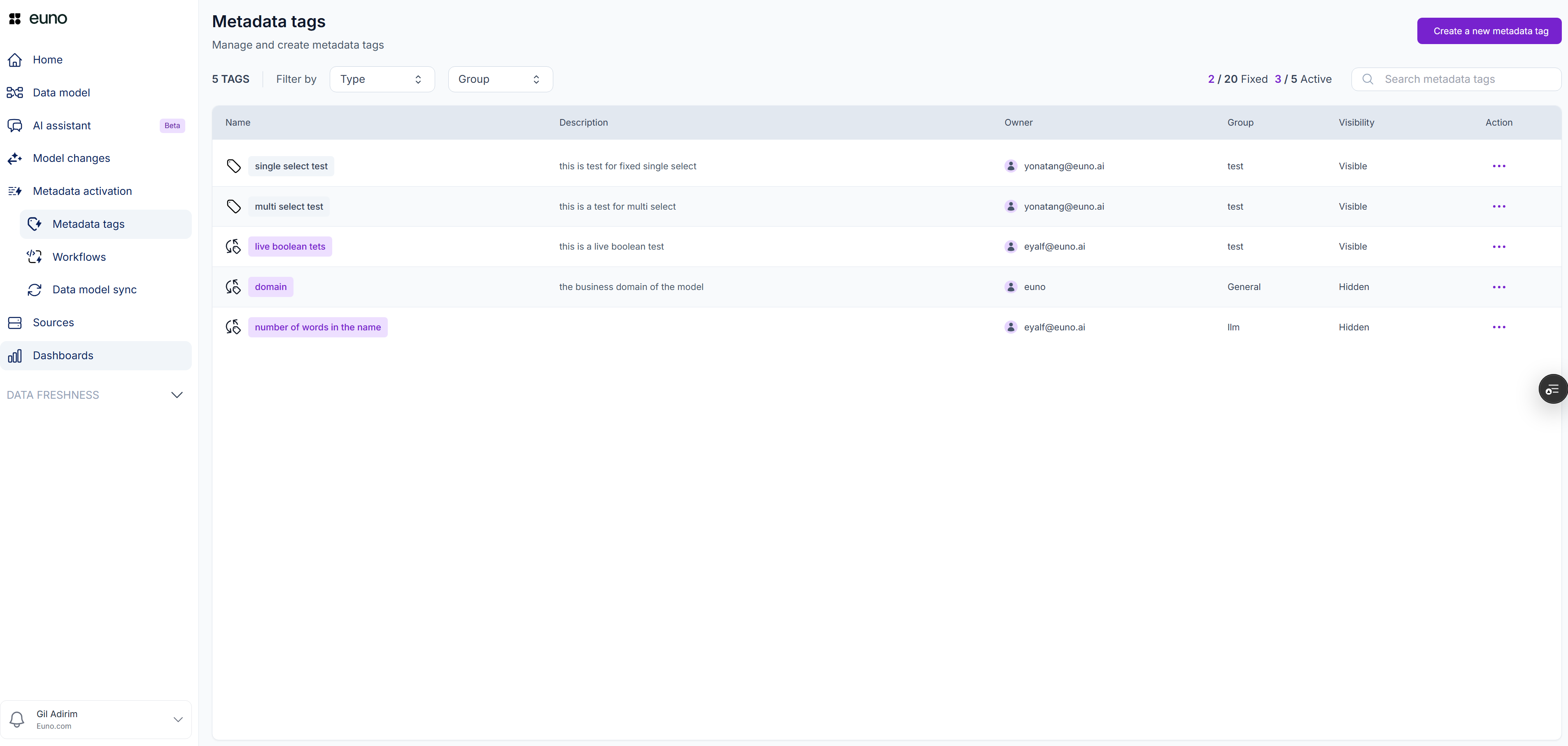
Metadata Tags Table
.png?alt=media) button
4. To reorder the values (which affects the order in which they are assigned to resources), click the
button
4. To reorder the values (which affects the order in which they are assigned to resources), click the.png?alt=media) or down
or down .png?alt=media) arrows within the value's box.
5. To delete a category, click on the
arrows within the value's box.
5. To delete a category, click on the.png?alt=media) located within the value's box.
6. When satisfied with the definition click "**Save**" found in the bottom right hand corner of the screen.
2. To create a **Live Boolean** (Active Tag) metadata tag:
1. **Add the Tag Scope**, which is an EQL statement that defines what this tag applies to (e.g., `type="dbt_model"` — applies only to dbt models).
2. **Add the logic for the positive EQL statement** using the **True If** text box (e.g., `tags in ("sales data")` — this means the tag will evaluate to true if the resource has the tag "sales data", and false if it does not, applicable only to dbt models).
3. When satisfied with the definition click "**Save**" found in the bottom right hand corner of the screen.
3. To create a **Propagated Boolean** (Active Tag) metadata tag:
1. **Add the Tag Scope**, which is an EQL statement that defines what this tag applies to (e.g., `type="dbt_model"` — applies only to dbt models).
2. **Add the Propagating Resource**, which is the resource from which you wish to propagate (e.g., `contains_pii is true` — will propagate the value of `contains_pii`)
3. **Add the Propagation Direction**, which is the direction from the propagated resource than you want to propagate towards (e.g. from PII it would be downstream towards a Dashboard, and from a Dashboard it would be downstream towards a dbt Model \[highly used, etc.])
4. **Add the Propagation Type**, which determines whether it is enough for one upstream/downstream resource that is propagated to meet the condition (e.g. PII usually requires at least 1) vs if ALL upstream/downstream resources that propagate meet the condition (e.g. a Certified dashboard is one that ALL upstream resources are from the Gold Layer).
4. To create an **AI Select** (Active Tag) metadata tag:
1. **Add the Tag Scope**, which is an EQL statement that defines what this tag applies to (e.g., `type="dbt_model"` — applies only to dbt models).
2. **Add the Properties to Include**, which are the resource properties that the LLM will need access to in order to classify the resource (e.g. `raw_code`)
3. **Add the Prompt**, which is the directive to the LLM with instructions on how to decide what the expected output of each resource should be, based on the supplied properties.
4. **Add the Options**, which are the possible values that the tag can receive.
5. To create a **Coalesce** (Active Tag) metadata tag:
1. **Add the Scope**, which is an optional EQL expression that limits which resources this tag applies to (default: `true` for all resources).
2. **Add the Properties to Include**, which are two or more indexed properties of the same type, in priority order. The tag's value will be the first property's value, unless it is null, in which case it will use the second property's value, and so on. Order matters: the first non-null value wins.
3. Use the up/down arrows to reorder properties as needed.
4. When satisfied with the definition click "**Save**" found in the bottom right hand corner of the screen.
6. To create a **Single Select** (Fixed Tag) metadata tag :
1. Add the **Tag Scope**, which is an EQL statement that defines what this tag applies to (e.g., `type="looker_dashboard"` — applies only to Looker Dashboards).
2. Add the **Values**, which are the options that the tag can be set to.
3. To add a value, click on the
located within the value's box.
6. When satisfied with the definition click "**Save**" found in the bottom right hand corner of the screen.
2. To create a **Live Boolean** (Active Tag) metadata tag:
1. **Add the Tag Scope**, which is an EQL statement that defines what this tag applies to (e.g., `type="dbt_model"` — applies only to dbt models).
2. **Add the logic for the positive EQL statement** using the **True If** text box (e.g., `tags in ("sales data")` — this means the tag will evaluate to true if the resource has the tag "sales data", and false if it does not, applicable only to dbt models).
3. When satisfied with the definition click "**Save**" found in the bottom right hand corner of the screen.
3. To create a **Propagated Boolean** (Active Tag) metadata tag:
1. **Add the Tag Scope**, which is an EQL statement that defines what this tag applies to (e.g., `type="dbt_model"` — applies only to dbt models).
2. **Add the Propagating Resource**, which is the resource from which you wish to propagate (e.g., `contains_pii is true` — will propagate the value of `contains_pii`)
3. **Add the Propagation Direction**, which is the direction from the propagated resource than you want to propagate towards (e.g. from PII it would be downstream towards a Dashboard, and from a Dashboard it would be downstream towards a dbt Model \[highly used, etc.])
4. **Add the Propagation Type**, which determines whether it is enough for one upstream/downstream resource that is propagated to meet the condition (e.g. PII usually requires at least 1) vs if ALL upstream/downstream resources that propagate meet the condition (e.g. a Certified dashboard is one that ALL upstream resources are from the Gold Layer).
4. To create an **AI Select** (Active Tag) metadata tag:
1. **Add the Tag Scope**, which is an EQL statement that defines what this tag applies to (e.g., `type="dbt_model"` — applies only to dbt models).
2. **Add the Properties to Include**, which are the resource properties that the LLM will need access to in order to classify the resource (e.g. `raw_code`)
3. **Add the Prompt**, which is the directive to the LLM with instructions on how to decide what the expected output of each resource should be, based on the supplied properties.
4. **Add the Options**, which are the possible values that the tag can receive.
5. To create a **Coalesce** (Active Tag) metadata tag:
1. **Add the Scope**, which is an optional EQL expression that limits which resources this tag applies to (default: `true` for all resources).
2. **Add the Properties to Include**, which are two or more indexed properties of the same type, in priority order. The tag's value will be the first property's value, unless it is null, in which case it will use the second property's value, and so on. Order matters: the first non-null value wins.
3. Use the up/down arrows to reorder properties as needed.
4. When satisfied with the definition click "**Save**" found in the bottom right hand corner of the screen.
6. To create a **Single Select** (Fixed Tag) metadata tag :
1. Add the **Tag Scope**, which is an EQL statement that defines what this tag applies to (e.g., `type="looker_dashboard"` — applies only to Looker Dashboards).
2. Add the **Values**, which are the options that the tag can be set to.
3. To add a value, click on the.png?alt=media) button
4. To delete a value, click on the
button
4. To delete a value, click on the%20(1).png?alt=media) button
5. When satisfied with the definition click "**Save**" found in the bottom right hand corner of the screen.
7. To create a **Multi Select** (Fixed Tag) metadata tag:
1. Add the **Tag Scope**, which is an EQL statement that defines what this tag applies to (e.g., `type="tableau_workbook"` — applies only to Tableau Workbooks).
2. Add the **Values**, which are the options that the tag can be set to.
3. To add a value, click on thebutton
4. To delete a value, click on thebutton
5. When satisfied with the definition click "**Save**" found in the bottom right hand corner of the screen.\\
8. To create a **Date & Time** (Fixed Tag) metadata tag:
1. Add the **Tag Scope**, which is an EQL statement that defines what this Tag applies to (e.g., `type="tableau_workbook"` — applies only to Tableau workbooks).
2. When satisfied with the definition click "**Save**" found in the bottom right hand corner of the screen.
9. To create a **Fixed Boolean** (Fixed Tag ) metadata tag:
1. Add the **Tag Scope**, which is an EQL statement that defines what this tag applies to (e.g., `type="dbt_model"` — applies only to dbt models).
2. When satisfied with the definition click "**Save**" found in the bottom right hand corner of the screen.
10. To create a **Number** (Fixed Tag) metadata tag:
11. Add the **Tag Scope**, which is an EQL statement that defines what this tag applies to (e.g., `type="dbt_source"` — applies only to dbt sources).
12. When satisfied with the definition click "**Save**" found in the bottom right hand corner of the screen.
13. To create a **Text** (Fixed Tag) metadata tag:
1. Add the **Tag Scope**, which is an EQL statement that defines what this tag applies to (e.g., `type="dbt_source"` — applies only to dbt sources).
2. When satisfied with the definition click "**Save**" found in the bottom right hand corner of the screen.
{% hint style="info" %}
For a **Long Text** tag, configure **Scope** and enable **Treat as JSON** when values contain JSON objects. For a **Liquid Template** tag, configure **Scope**, **Properties to fetch**, **Expression**, and **Property type**, then test the expression before saving. Liquid Template editing must be enabled for your account.
{% endhint %}
## Managing Metadata Tags
Once a metadata tag has been created, it will be displayed in the Tag Manager table found in the Metadata Tags screen. This table displays:
* **Tag name**
* **Description**
* **Owner**
* **Group**
* **Visibility**
The table can be filtered by type or group, and can be searched by the tag name. From this table, you can delete, edit, or copy tags from the action list.
button
5. When satisfied with the definition click "**Save**" found in the bottom right hand corner of the screen.
7. To create a **Multi Select** (Fixed Tag) metadata tag:
1. Add the **Tag Scope**, which is an EQL statement that defines what this tag applies to (e.g., `type="tableau_workbook"` — applies only to Tableau Workbooks).
2. Add the **Values**, which are the options that the tag can be set to.
3. To add a value, click on thebutton
4. To delete a value, click on thebutton
5. When satisfied with the definition click "**Save**" found in the bottom right hand corner of the screen.\\
8. To create a **Date & Time** (Fixed Tag) metadata tag:
1. Add the **Tag Scope**, which is an EQL statement that defines what this Tag applies to (e.g., `type="tableau_workbook"` — applies only to Tableau workbooks).
2. When satisfied with the definition click "**Save**" found in the bottom right hand corner of the screen.
9. To create a **Fixed Boolean** (Fixed Tag ) metadata tag:
1. Add the **Tag Scope**, which is an EQL statement that defines what this tag applies to (e.g., `type="dbt_model"` — applies only to dbt models).
2. When satisfied with the definition click "**Save**" found in the bottom right hand corner of the screen.
10. To create a **Number** (Fixed Tag) metadata tag:
11. Add the **Tag Scope**, which is an EQL statement that defines what this tag applies to (e.g., `type="dbt_source"` — applies only to dbt sources).
12. When satisfied with the definition click "**Save**" found in the bottom right hand corner of the screen.
13. To create a **Text** (Fixed Tag) metadata tag:
1. Add the **Tag Scope**, which is an EQL statement that defines what this tag applies to (e.g., `type="dbt_source"` — applies only to dbt sources).
2. When satisfied with the definition click "**Save**" found in the bottom right hand corner of the screen.
{% hint style="info" %}
For a **Long Text** tag, configure **Scope** and enable **Treat as JSON** when values contain JSON objects. For a **Liquid Template** tag, configure **Scope**, **Properties to fetch**, **Expression**, and **Property type**, then test the expression before saving. Liquid Template editing must be enabled for your account.
{% endhint %}
## Managing Metadata Tags
Once a metadata tag has been created, it will be displayed in the Tag Manager table found in the Metadata Tags screen. This table displays:
* **Tag name**
* **Description**
* **Owner**
* **Group**
* **Visibility**
The table can be filtered by type or group, and can be searched by the tag name. From this table, you can delete, edit, or copy tags from the action list.
Metadata Tags Table

Metadata Tag's Page
.png?alt=media)
Setting a Fixed Property
.png?alt=media)
Showing Hidden Unset Properties
.png?alt=media)
.png?alt=media)
Adding Custom Property as Column in Tabular View
.png?alt=media)
Viewing Custom Property in Resource's Side Panel
.png?alt=media)
Filtering in EQL with Custom Property
.png?alt=media) both on the tag's page and in the main Tag Manager table.
If the EQL query used to calculate the tag times out after a one-minute delay, the user will see a yellow clock icon. Clicking this icon will display the following message: "The tag timed out while calculating, so the values might be delayed. Consider simplifying the EQL conditions. For more details, refer to the documentation."
both on the tag's page and in the main Tag Manager table.
If the EQL query used to calculate the tag times out after a one-minute delay, the user will see a yellow clock icon. Clicking this icon will display the following message: "The tag timed out while calculating, so the values might be delayed. Consider simplifying the EQL conditions. For more details, refer to the documentation."
.png?alt=media)
Troubleshooting Custom Properties