> For the complete documentation index, see [llms.txt](https://docs.euno.ai/llms.txt). Markdown versions of documentation pages are available by appending `.md` to page URLs; this page is available as [Markdown](https://docs.euno.ai/sources/business-intelligence/omni-integration/omni-usage-setup.md).
# Omni Usage Setup
Euno can observe usage data for Omni workbooks and dashboards—how often they are viewed and by whom. This information helps you identify popular resources, find unused dashboards to archive, and understand adoption patterns.
{% hint style="info" %}
**Prerequisite**: Omni Usage requires the [Omni integration](/sources/business-intelligence/omni-integration.md) to also be set up. The Omni integration discovers workbooks and dashboards in Euno; the Omni Usage integration then associates usage data with those resources. Without the Omni integration, there are no resources to attach usage to.
{% endhint %}
For details on the usage properties observed (e.g. `total_impressions_14d`, `used`), see [Omni Usage Data](/using-euno/usage-optimization/omni-usage-data.md).
## Overview
Omni Usage is a **push integration**: your Omni instance (or an external system) sends usage data to Euno via a webhook. Euno stores the events and a global processor aggregates them into usage observations on workbooks and dashboards.
## Step 1: Add Omni Usage Integration in Euno
1. Go to the **Sources** page in Euno.
2. Click **Add New Source** and select **Omni Usage**.
3. Configure:
Asterisk (\*) means a mandatory field.
| Configuration | Description |
| -------------- | ------------------------------------------------------------------------------------------------------------------------------------------------------------- |
| **Name\*** | A name for this source (e.g. "Omni Usage - Analytics"). |
| **Instance\*** | Your Omni instance subdomain. Must match the [Omni source](/sources/business-intelligence/omni-integration.md) (e.g. `mycompany` for `mycompany.omniapp.co`). |
4. Click **Test & Save**. After the source is created, Euno shows a **webhook URL** with an embedded secret. Copy this URL — you will configure it as the Omni Analytics delivery destination.
## Step 2: Configure Omni to Push Usage Data
Configure your Omni instance or an external export process to send usage data to the **webhook URL** from Step 1. Only an Omni Account Admin can complete these steps.
{% stepper %}
{% step %}
#### Open Omni Analytics embedded interface
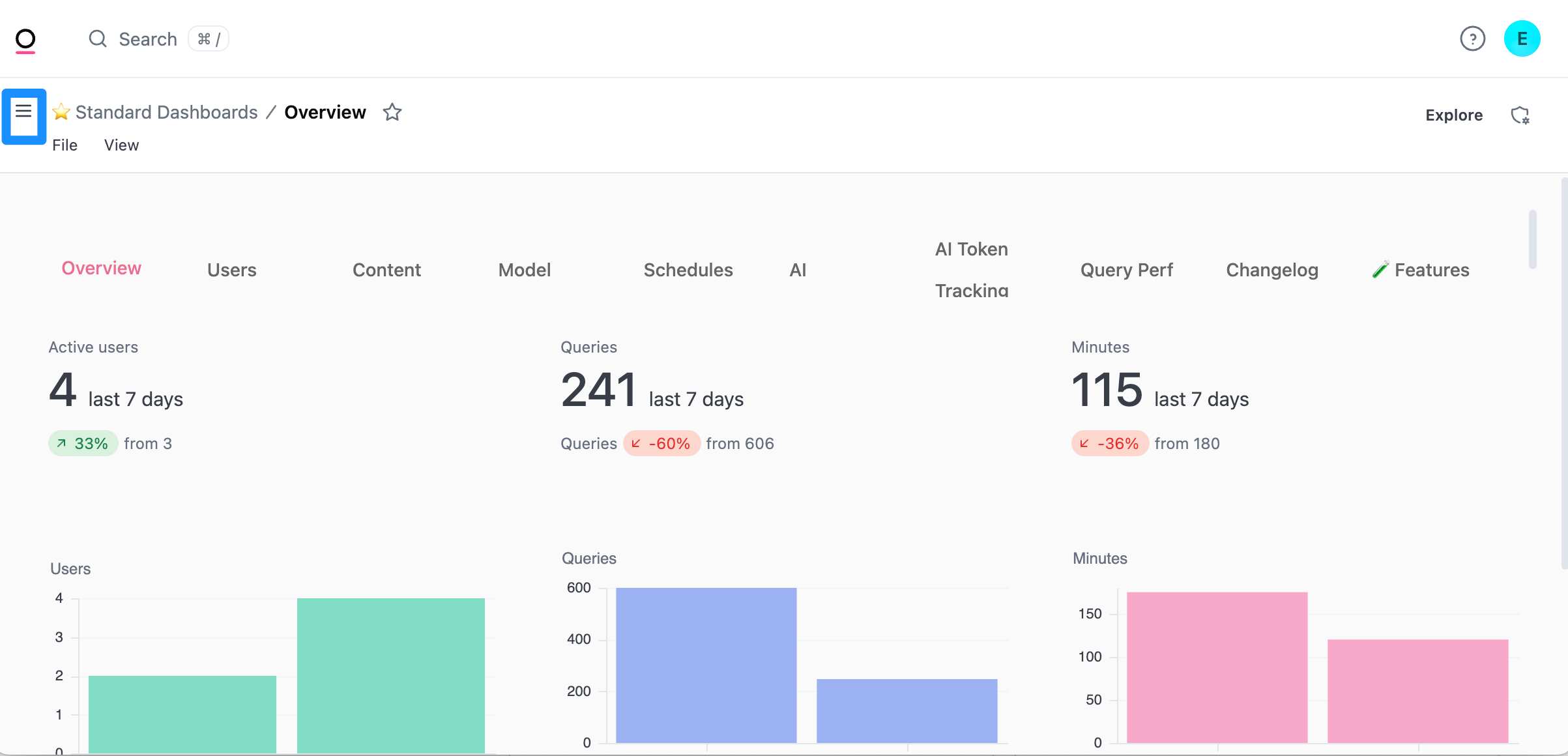
Login to your Omni instance and locate the Analytics interface.\

{% endstep %}
{% step %}
#### Create a new workbook in Omni Analytics embedded interface
Navigate to the Omni Analytics embedded interface side menu
Pick "Hub". This is the Hub of the Omni Analytics embedded interface. It's distinct from the "Hub" of your Omni instance.
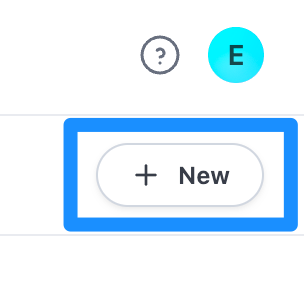
Click "New" to create a new Omni workbook.
{% endstep %}
{% step %}
#### Create the Usage query to be pushed to Euno
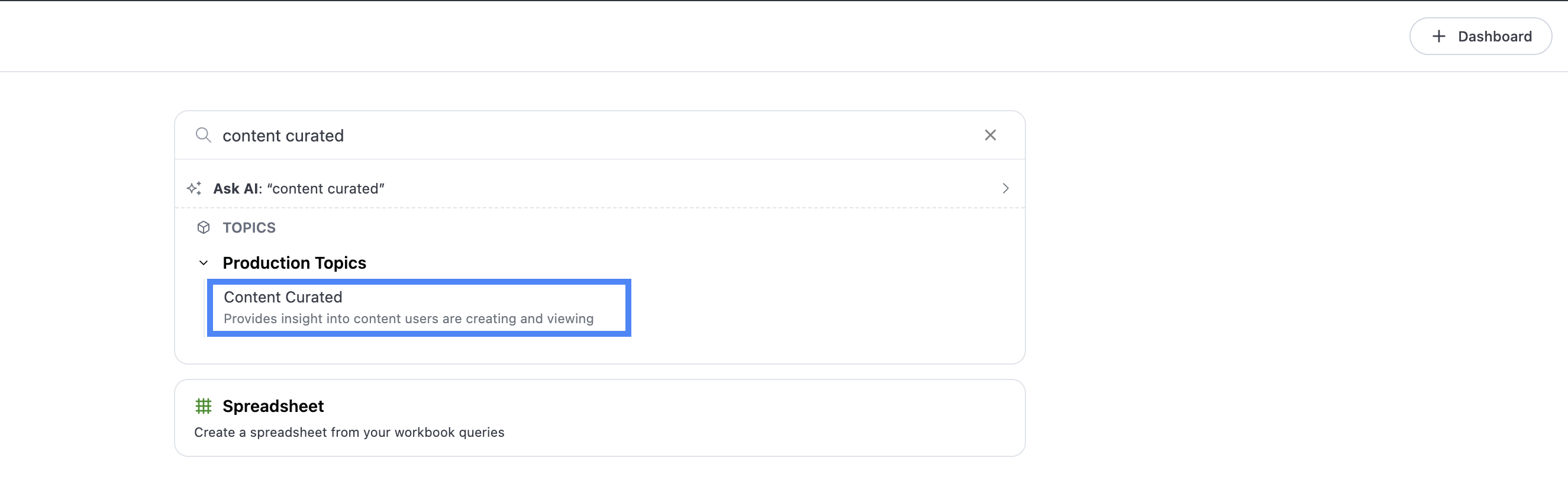
Pick the `Content Curated` Omni Topic. This will be the topic used by the Query.
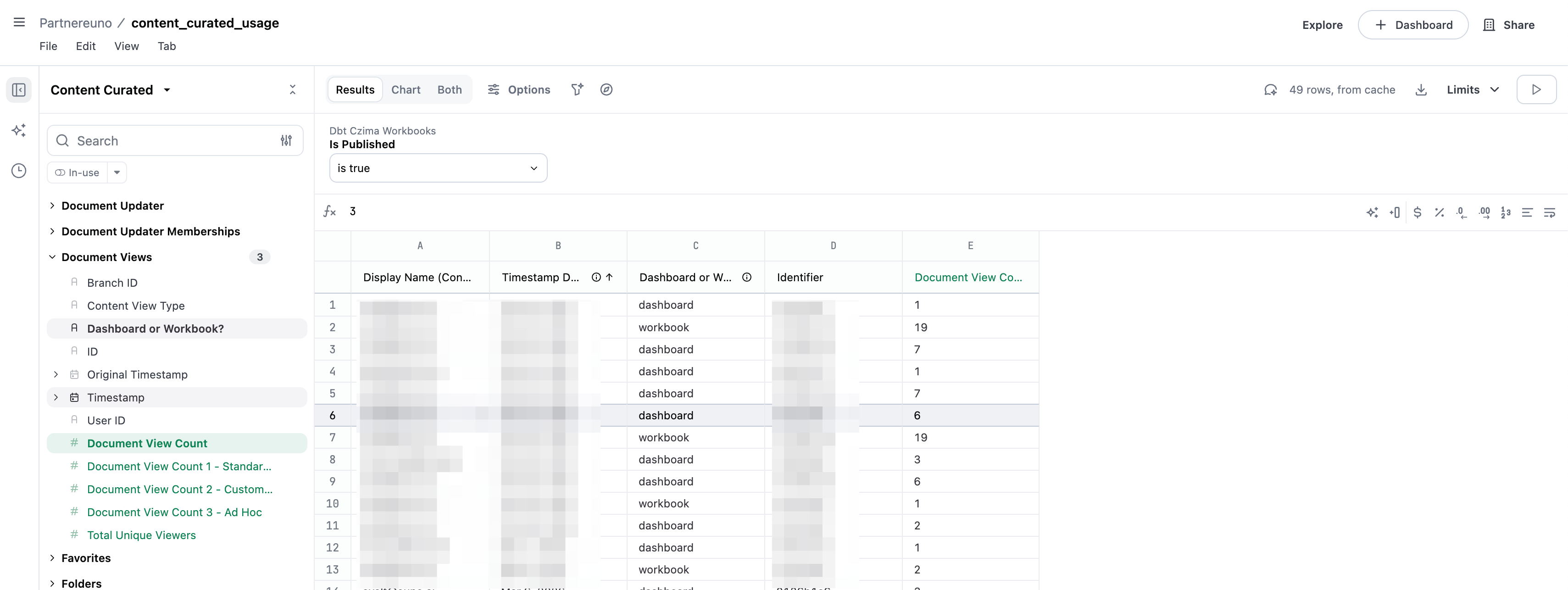
Pick the following fields to be included in the Query, the order of the fields doesn't matter:
| Omni View | Field |
| ----------------- | ----------------------- |
| Document Views | Timestamp -> Date |
| Document Views | Dashboard or Workbook? |
| Document Views | Document View Count |
| Document Consumer | Display Name (Consumer) |
| Workbooks | Identifier |
If you picked the right fields, your table should look like:
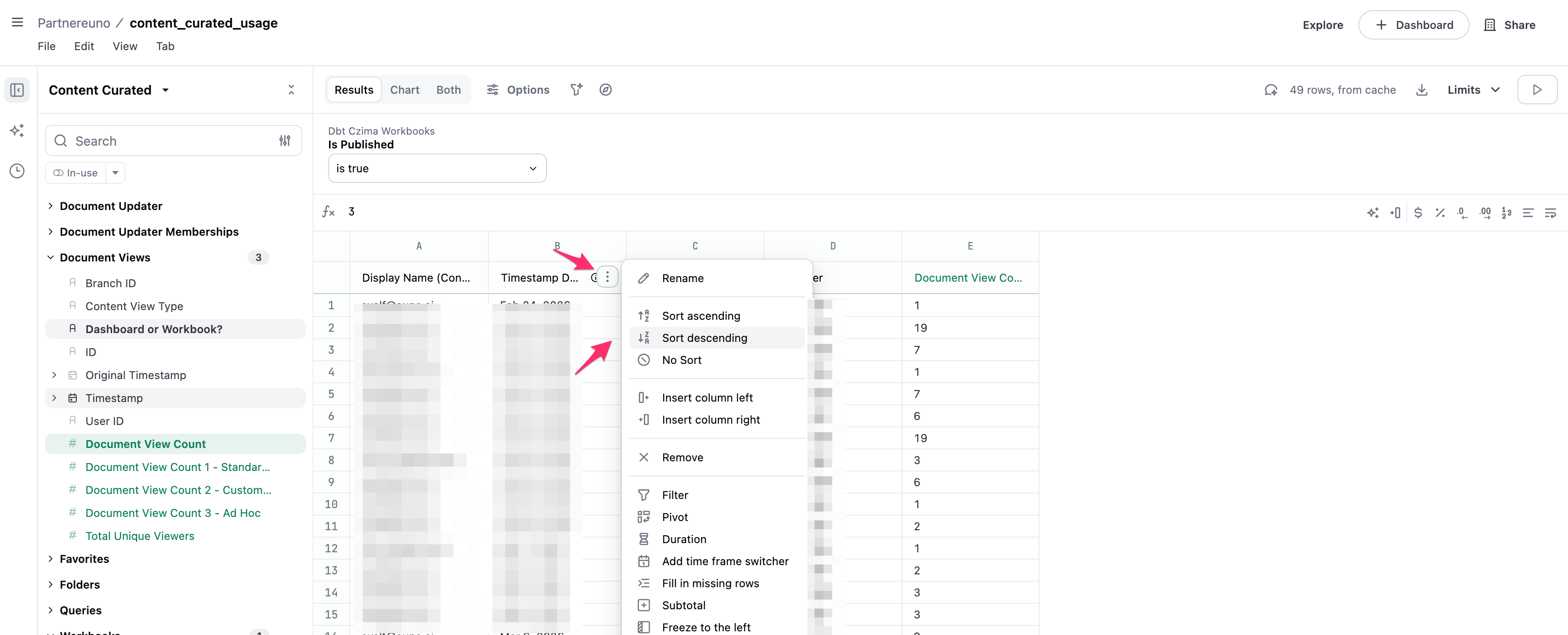
Sort the table by Timestamp Date, in descending order:
{% endstep %}
{% step %}
#### Save the workbook
Click File -> Save...
Pick any folder and name to save the workbook in. Remember that the folder structure is not your organization standard folder structure. This is the Omni Analytics embedded interface. To keep things organized, we recommend selecting your organization under the "Hub", and naming the workbook "Omni usage data for Euno integration"
{% endstep %}
{% step %}
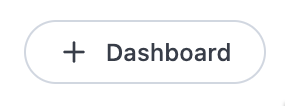
#### Create a Dashboard for this workbook
{% endstep %}
{% step %}
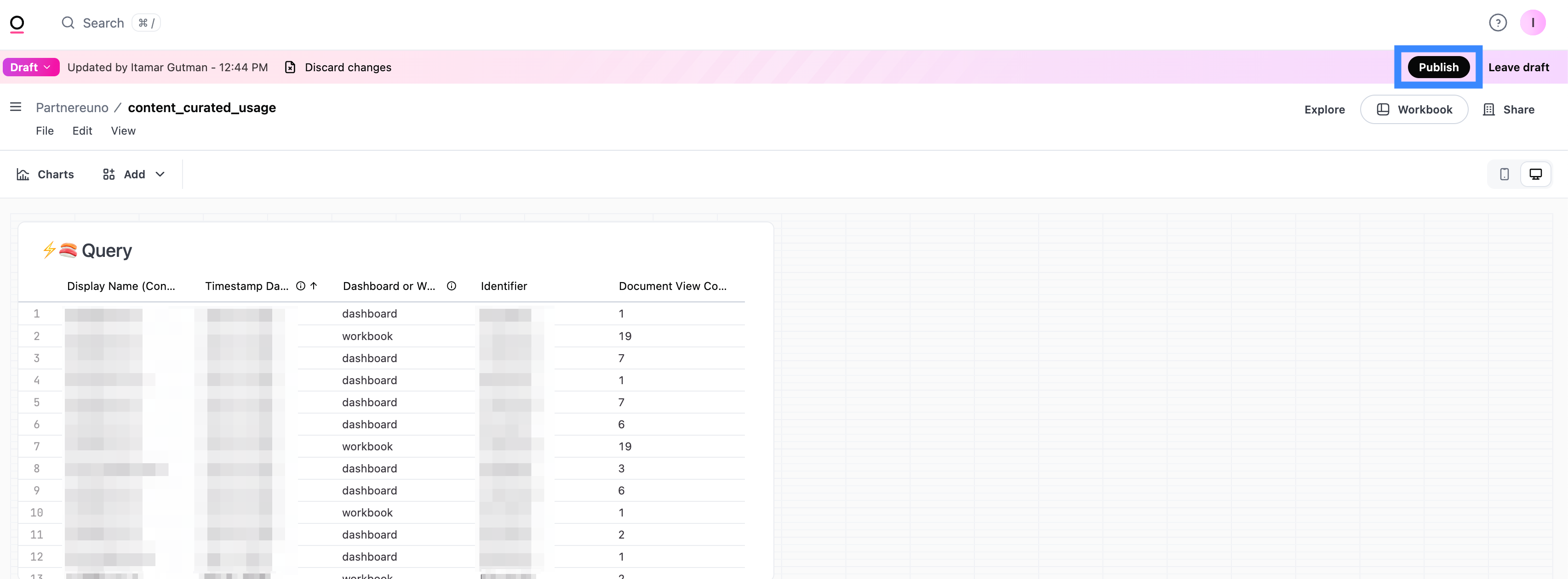
#### Publish the workbook
{% endstep %}
{% step %}
#### Configure Omni Analytics to send usage information to Euno on a schedule
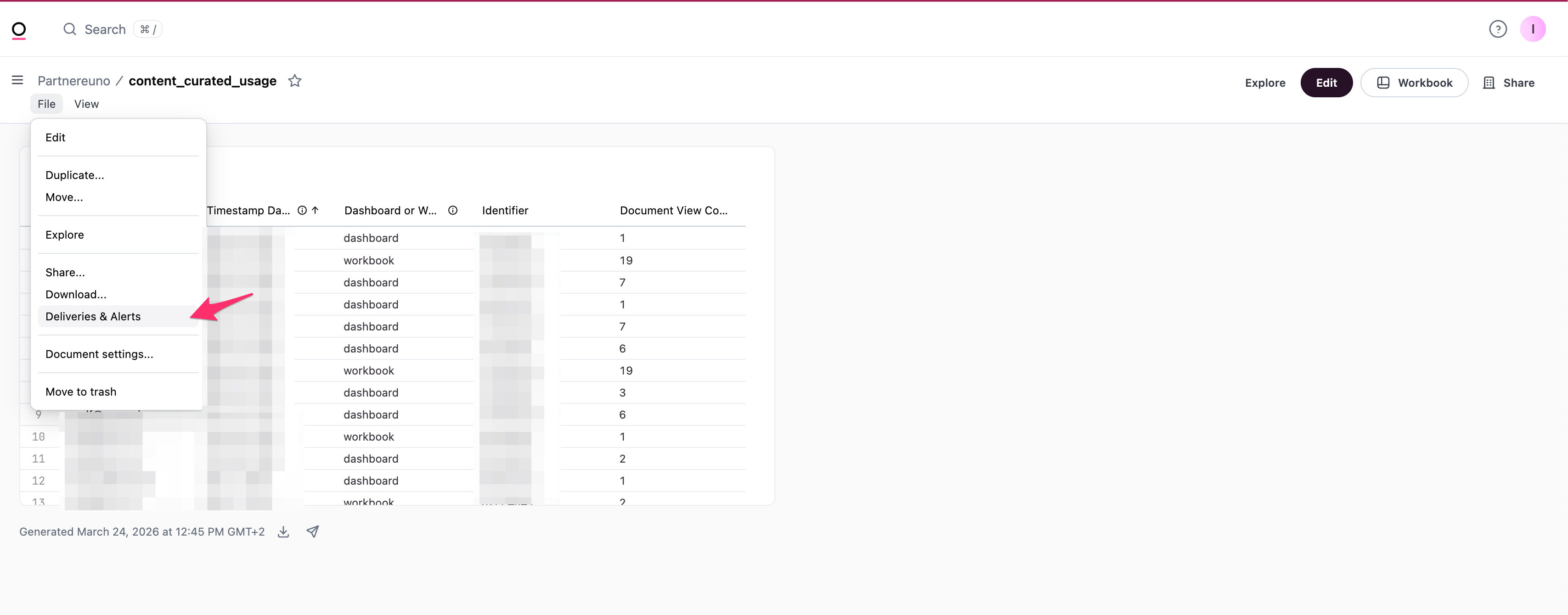
Click File -> "Deliveries & Alerts"
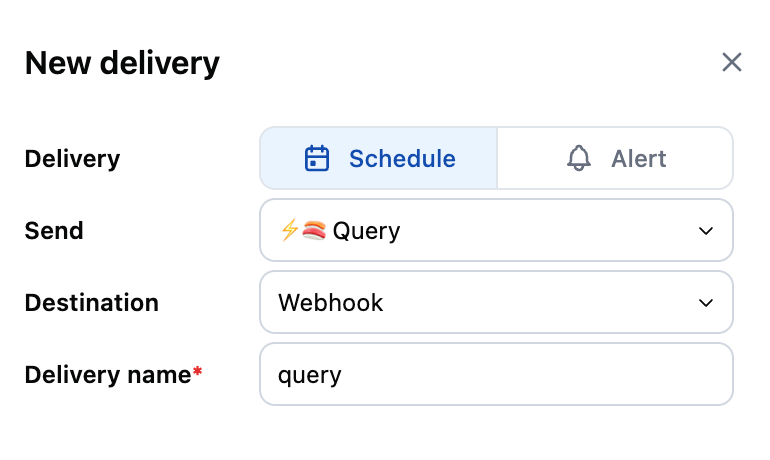
This will open a side menu to configure a scheduled delivery of the query we configured to Euno.
Pick, from top to bottom:
Delivery: Schedule
Send: Query
Destination: Webhook
Delivery name: query
Configure The Schedule of delivery. We recommend keeping the defaults.
Under "Chart", pick Format: JSON
Make sure to mark "Send all possible results"
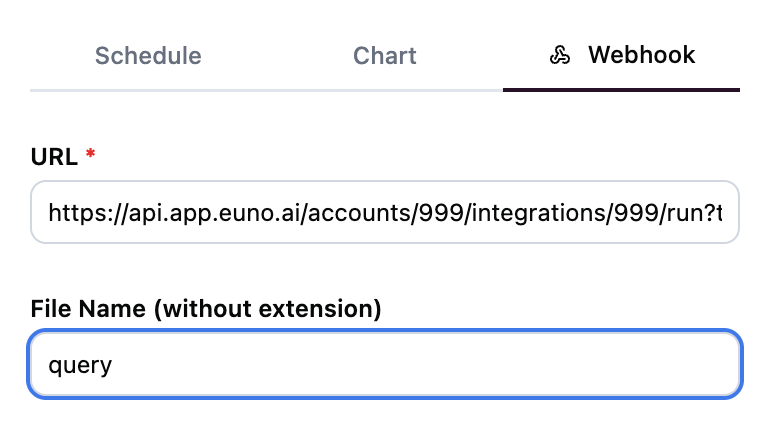
Under "Webhook", set:
URL: the webhook URL you copied from Step 1
File Name: "query"
To test, click "Test now". To save, click "Save"
{% endstep %}
{% endstepper %}
## Related
* [Omni integration](/sources/business-intelligence/omni-integration.md) – Set up the Omni integration to discover workbooks and dashboards.
* [Omni Usage Data](/using-euno/usage-optimization/omni-usage-data.md) – Properties and metrics observed for Omni resources.
---
# Agent Instructions
This documentation is published with GitBook. GitBook is the documentation platform designed so that both humans and AI agents can read, navigate, and reason over technical content effectively. Learn more at gitbook.com.
## Querying This Documentation
If you need additional information that is not directly available in this page, you can query the documentation by asking a question.
Perform an HTTP GET request on the following URL with the `ask` and `goal` query parameters:
```
GET https://docs.euno.ai/sources/business-intelligence/omni-integration/omni-usage-setup.md?ask=&goal=
```
`ask` is the immediate question: it should be specific, self-contained, and written in natural language.
`goal` is what the user is ultimately trying to achieve, the reason they need the answer. Sharing it helps GitBook give you a better, more relevant answer. A goal is most helpful when it describes the outcome the user wants rather than restating the question. For example, with `ask=how do I create an API token`, a goal like `automate deployments from our CI pipeline` lets GitBook tailor the answer to that use case.
The response will contain a direct answer to the question and relevant excerpts and sources from the documentation.
Use this mechanism when the answer is not explicitly present in the current page, you need clarification or additional context, or you want to retrieve related documentation sections.